Rotating Squares
Squares (or any regular polygon) drawn layer inside layer, each one a little smaller and turned a little further, building tunnels, vortices and optical illusions.
Open Rotating Squares in Studio
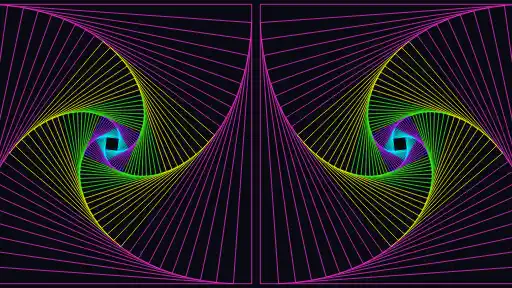
Draw a square (or any regular polygon) and keep drawing smaller copies inside it, each one shrunk a little and turned a fixed angle further. Two rules, shrink and turn, are enough to build tunnels, whirlpools and illusions that seem to move.
How the math works
- Fixed length: arithmetic sequence (common difference d)
- rₖ = r₀ − k · d
- Fixed ratio: geometric sequence (common ratio q)
- rₖ = r₀ · qᵏ
- Angle of layer k (each layer turns α more)
- θₖ = θ₀ + k · α
- Inscribed: the shrink ratio when each corner touches the edge before
- q = cos(π / n) / cos(α − π / n)
In Fixed length mode the radii form an arithmetic sequence: each layer is smaller by the same common difference d, so every band has the same width. In Fixed ratio mode they form a geometric sequence: each radius is the previous one times the same ratio q, so the layers shrink ever more slowly and never reach the center.
The angles form an arithmetic sequence too: layer k is turned k × α further than the outer one. Scaling plus rotation is a similarity transformation, so every layer has exactly the same shape as the others, only a different size and direction: they are similar figures.
Inscribed mode places each new corner exactly on an edge of the layer before, and the number of sides n and the turn α decide how much it shrinks. Join the corners from layer to layer and you see curves winding into the center: equiangular spirals, which meet every radius at the same angle.
Parameters
- Sides
- Number of sides of the regular polygon: 3 is a triangle, 4 a square, 6 a hexagon, up to 8.
- 3 to 8
- Layers
- How many layers to draw. In Fixed length mode more layers mean a smaller common difference and thinner bands.
- 4 to 160
- Turn per layer (°)
- How many degrees each layer turns beyond the one outside it (α). 0 gives concentric polygons; larger angles wind the whirl tighter.
- 0 to 30
- Shrink
- How much each layer shrinks: Inscribed keeps the corners on the previous edges, Fixed ratio multiplies by the same ratio, Fixed length subtracts the same difference.
- Inscribed (corners on edges) · Fixed ratio · Fixed length
- Shrink ratio
- The common ratio q in Fixed ratio mode: each radius as a fraction of the one before. Closer to 1 packs the layers more tightly.
- 0.8 to 0.995
- Size
- Size of one figure, measured in short edges. With Single, values above 1 run past the canvas, and with an offset the figure can cover the whole background.
- 0.3 to 3
- Fill
- Outline draws only the edges; Solid paints each layer from the outside in, so the inner layers cover the outer ones and leave rings of color; Solid with outline also traces each edge in the background color.
- Outline · Solid · Solid with outline
- Line width
- Outline width, relative to the short side of the canvas. It only applies when outlines are drawn.
- 0.0005 to 0.012
- Rotation
- Turns each figure inside its own cell.
- Angle, 0° to 360°
- Layout
- How figures fill the canvas: Single places one, Repeat lays out a grid, Mirror flips every other cell so neighboring whirls spin opposite ways.
- Single · Repeat · Mirror
- Horizontal offset
- Moves the center of the pattern left or right, measured in short edges: with Single the figure leaves the middle; with Repeat or Mirror the whole grid slides and new cells fill in on the uncovered side.
- -1 to 1
- Vertical offset
- Moves the center of the pattern up or down, measured in short edges. Positive values move it down.
- -1 to 1
- Layout rotation
- Turns the whole layout around its (offset) center, like rotating the camera: with Repeat or Mirror the grid becomes diagonal and new cells fill the corners. Rotation, by contrast, spins each figure inside its own cell.
- Angle, 0° to 360°
Examples
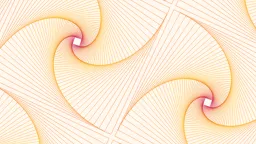
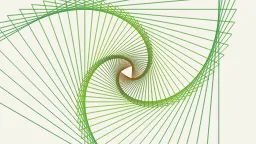
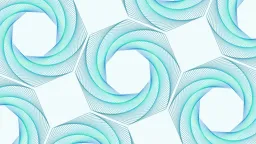
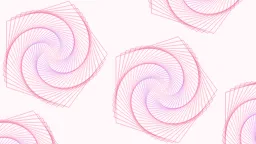
Each example opens in the studio with these settings.

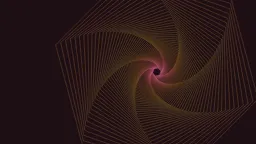
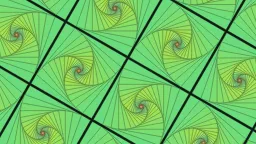
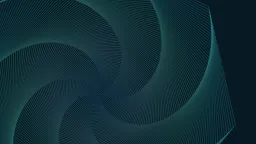
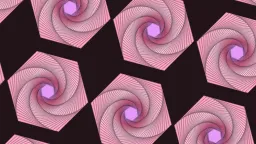
Using it as a background
Choose Solid and Fixed length, make the figure large and move its center to one side: you get a slide cover with room for a title and a visible common difference.
Thin lines on a dark background with a 3° to 6° turn give the strongest whirl. Animate the turn slowly and the tunnel seems to tighten and relax.