Moiré
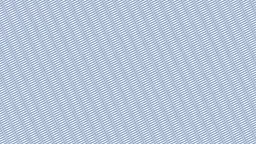
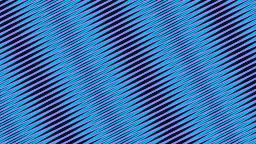
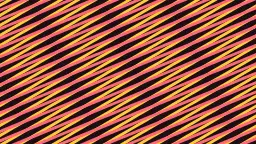
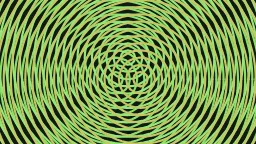
Two or three layers of evenly spaced lines or circles, slightly rotated or offset, interfere into broad fringes.
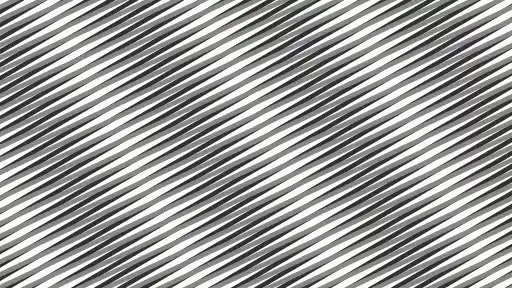
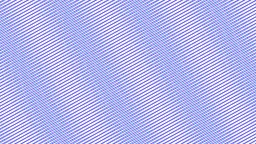
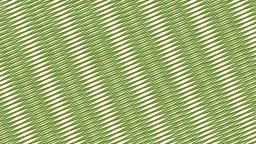
Lay two sets of fine lines on top of each other with a slight twist, and wide, bold stripes appear as if from nowhere. This is a moiré pattern: two regular patterns interfere and create a new one at a much larger scale.
How the maths works
- Band spacing for lines at angle θ
- D = s / (2 · sin(θ / 2))
- Approximation for small angles
- D ≈ s / θ
For two sets of lines with spacing s at an angle θ, the bands are D = s / (2 · sin(θ / 2)) apart. For small θ this is about s / θ, so a smaller angle gives wider bands: a 4° turn magnifies the line spacing about 14 times.
Bands appear where the two sets alternate between in step and out of step. In step, the lines overlap and leave white space between them; out of step, they fill each other’s gaps and the area looks darker.
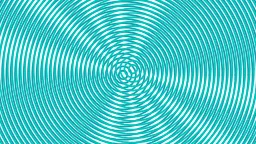
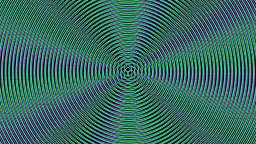
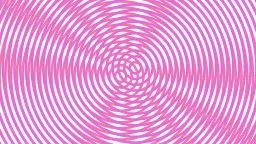
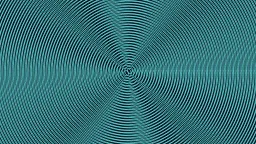
The concentric version offsets the centres of two sets of circles. The bands fall where the distances to the two centres differ by a whole number of spacings, a family of hyperbolas, so it looks like two sets of ripples interfering.
Parameters
- Pattern
- Build the moiré from straight lines or concentric circles.
- Lines · Circles
- Layers
- How many layers to stack. Three layers give more complex crossing bands.
- 2 to 3
- Spacing
- Spacing s between lines, relative to the short side. Smaller spacing makes the lines themselves finer and less visible.
- 0.012 to 0.08
- Line width
- Line width. The bands are clearest when the width is about half the spacing.
- 0.001 to 0.02
- Twist (lines, °)
- Angle θ between layers in Lines mode. Smaller angles give wider bands.
- 0.5 to 30
- Offset (circles)
- Distance between the two circle centres in Circles mode. Larger distances give denser bands.
- 0.01 to 0.3
- Blur
- Overall blur, relative to the canvas short side. 0 means no blur; larger values soften the lines into a glow.
- 0 to 0.04
Examples
Each example opens in the studio with these settings.
Using it as a background
Moiré changes as a screen scales the image, so check the export at its real size.
An angle of 2° to 6° gives the broadest ripples. Animate the circle centres slowly and the bands flow like water.